
A recent study by RepTrak revealed that brands with a strong reputation experienced better business outcomes, including increased sales (73.7%), customer recommendations (73.3%), and a greater benefit of the doubt during crises (67.4%).
A logo showcase lets you leverage other brands’ popularity to build your website’s reputation. This encourages website visitors to trust your products, creating lead conversion opportunities.
In this article, we’ll walk you through the process of integrating a Logo Showcase widget on your website using Webynize and also include tips for customizing it and common mistakes to avoid.
Webynize offers easy widget implementation with simple embed codes that you can add to all major website types. Also, our Webynize Logo Showcase widget is mobile-optimized for seamless performance across devices.
Create a Webynize widget today and leverage your brand associations to generate invaluable social proof for your business!
How to Add a Logo Showcase to Your Website without Coding
Ready to add a logo showcase on your website and build social proof for your business?
Here’s how to do it:
Create a Webynize Logo Showcase Widget
The first part of this guide will explain how to create a Logo showcase widget using Webynize. Follow these steps:
- Sign up for free to Webynize and enjoy 7 days of unlimited access to our widget library. However, after the 7 days, you may visit our Pricing Page and pick a monthly plan to continue accessing the premium features.

- Click the +Create Widget button to go to our widget library.
- Open the dropdown menu and select the Logo Showcase widget.
- Provide a custom name for the widget and click Next to open the editor panel.
- Personalize the Logo Showcase widget to your preferences by setting the background color, font size, and layout.
- Click Embed on Website and specify your web builder.
- Copy the JavaScript code that appears on the pop-up.
Add the Logo Showcase to Your Website
Now that you have copied the embed code, it is time to paste it on your website. Here’s a simple guide:
- Log in to your website admin dashboard and open the web page where you want to add the Logo showcase.
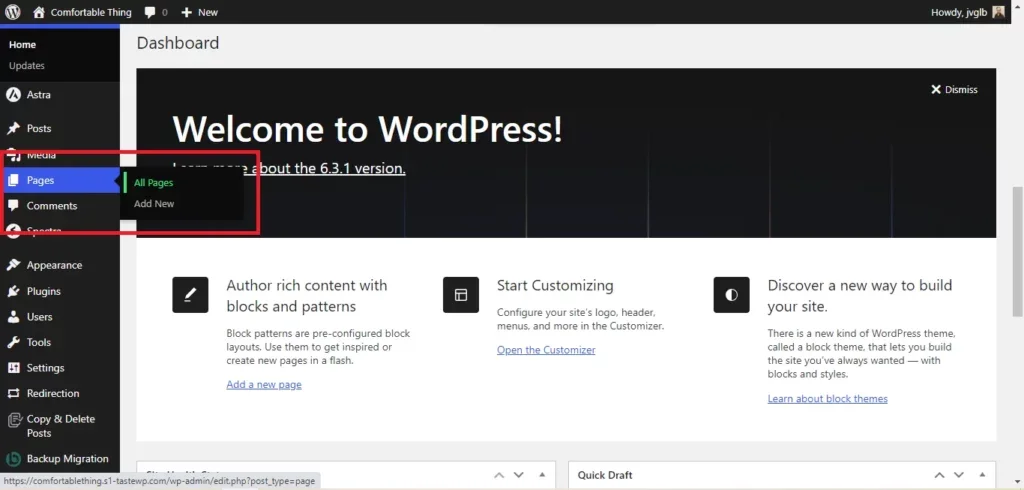
- Open the code editor, rich text editor, or code block section depending on your website type. Here’s an example for WordPress.
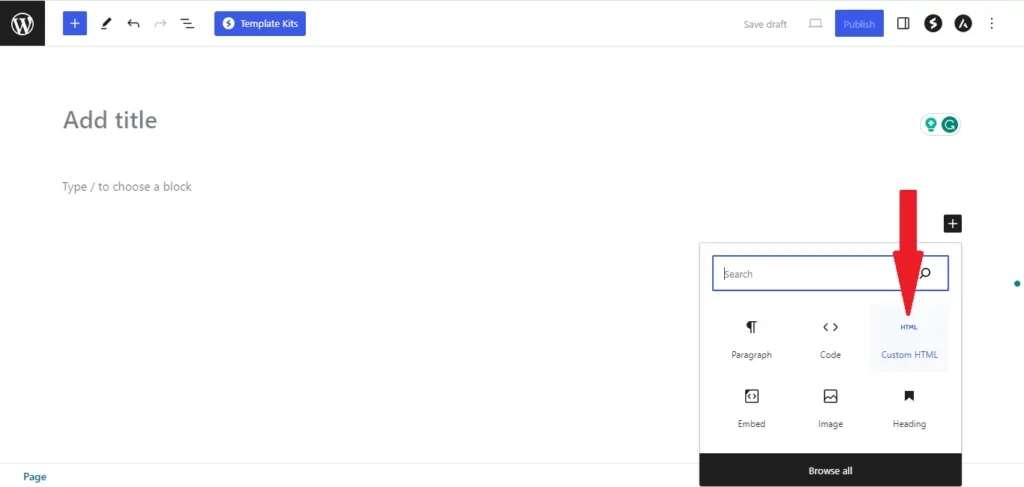
- Paste the script you copied from the Webynize embed code generator.
- Save the changes and click Publish for the Logo showcase to go live.
Just like that, visitors can now see your brand partners, clients, or sponsors on your website.
Sign up for Webynize and add a Logo Showcase to your website in 60 seconds!
[LIVE-DEMO]
[TESTIMONIALS]
What Is a Logo Showcase?
As the name suggests, a Logo Showcase is a feature that enables you to display multiple brands on your website.
The aim could be to establish your business as trustworthy or leverage the displayed brands’ reputation to build social proof for yours.
A Logo Showcase is simply a way to say, “Here are the companies that do business with us. They trust us, so we think you should trust us too.”
You could have one or multiple Logo Showcases across your website, depending on the intended purpose. For example, you could showcase your brand partners on your About page to build credibility by associating yourself with reputable companies. Additionally, you can showcase your clients on service pages to encourage high-intent buyers to make a purchase decision.

Reasons to Add a Logo Showcase to Your Website
Adding a logo showcase to your website does more for your brand than just highlighting your partners.
Here are some added benefits:
- Increased Social Proof: Embedding a Logo Showcase works similarly to adding a Social Proof widget to your website. It helps visitors understand that you’ve worked with multiple clients, establishing your business as authentic and credible. It, in turn, encourages them to trust your services.
- Improved Website Aesthetics: A well-designed and curated logo showcase helps revamp your website’s visual design, creating a strong impression on visitors.
- Boosted Visitor Engagement: Visitors are likely to interact with the logo showcase out of curiosity to see which brands you have worked with. This encourages them to stay on your website longer, increasing dwell time.
- Lead Generation Opportunities: A logo showcase is arguably one of the best places to position a call-to-action (CTA) statement, encouraging visitors to take the next step, such as scheduling a live demo.

Essential Features of an Effective Logo Showcase
A great logo showcase does more than just display your business partners. It invites visitors to interact with it and creates opportunities for introducing them to your conversion funnel.
Use the checklist below to design an effective logo showcase:
- Flexible Customizations: It should be possible to style the logo showcase so it complements your website theme. Alternatively, use colors that contrast your website theme to make the logo stand out and attract visitor attention quickly.
- Responsiveness: Use a mobile-first approach to ensure the logo showcase is dynamic and auto-adjusts to various screen sizes. This way, it appears the same when viewed on mobile or PC.
- Diverse Layout Options: The logo showcase should allow you to display the icons in your preferred layout, with options including grid, carousel, and list.
- Linkability: The showcase should allow you to insert hyperlinks that direct visitors to the partners’ websites or other web pages where they can obtain more details about the partnership.
- Hover and Overlay Effects: It should let you incorporate opacity changes or color-to-monochrome transitions when visitors hover over the feed. For example, the logo showcase could appear in grayscale, but switch to full color on hover.

Logo Carousel and Slider Examples for Inspiration
Curious how to style your logo showcase to boost visitor engagement? This section highlights a few examples of logo carousel and slider layouts to inspire you:
Example 1: Showcasing Your Clients
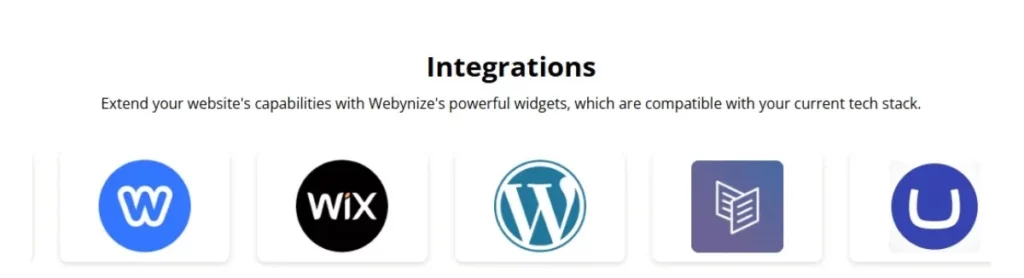
If you have many clients, it is impractical to display all of them on your logo showcase, as this would make your website cluttered.
However, you could select about 10 client companies and highlight their testimonials alongside their logos to build social proof for your products.
Example 2: Showcasing Your Partners

Use a carousel logo showcase to display your partners on your website for an effective way to strengthen your brand reputation and highlight your industry connections.
Clients will likely trust your business when they see that you are partners with reputable brands in your niche or related industries.
Example 3: Showcasing Project Sponsors
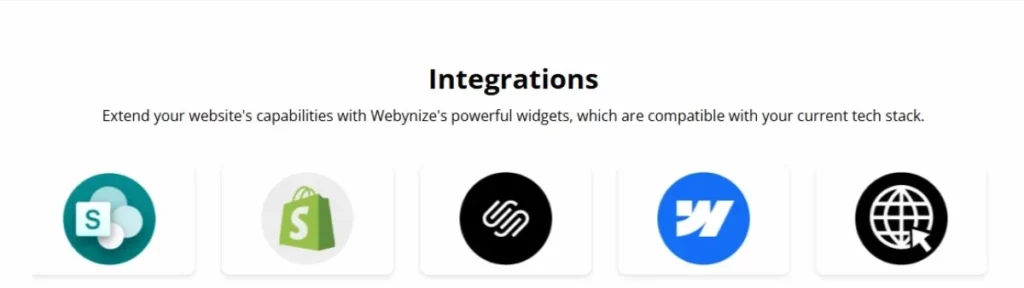
Are you organizing an event and have a dedicated landing page where visitors can get information about it?
Add a logo showcase to display the project sponsors, using it as a way to generate excitement around the event.
Common Mistakes to Avoid with Logo Showcases
Below are common pitfalls to avoid when designing your logo showcase or embedding it on your website:
- Poor Placement: Embedding the logo showcase in cluttered areas, such as near banners or third-party advertisements, reduces its visibility. Instead, position the logo showcase in premium real estate, such as above the fold or on your About page.
- No Clear Organization: Adding logos randomly without a clear structure could dilute their impact and discourage visitors from engaging with the showcase. Use relevant headings, such as ‘Clients,’ ‘Partners,’ or ‘Sponsors,’ so visitors immediately know what the showcase is about.
- Logo Overload: Cluttering your showcase with too many logos can overwhelm your visitors, causing them to disengage and potentially bounce off your site. Instead, select five to 10 brands (usually the most reputable ones) and make them the focus of your display.
- Ignoring UX: Logos that aren’t responsive or clickable undermine your user experience, hurting your website’s engagement and dwell time. Ensure your logo showcase is responsive to encourage visitors to interact with your website on the go.

Frequently Asked Questions (FAQs)
Let’s wind up our guide by answering commonly asked questions about adding a logo showcase to your website:
Can I Use a Logo Showcase for Client Testimonials?
Yes. You can use a logo showcase to display client testimonials, enhancing brand recognition.
You can also customize the logo showcase to quickly grab visitors’ attention, attracting them to interact with the testimonials.
What Layouts Are Best for a Logo Showcase?
Grid, carousel, and list are the best layouts for a logo showcase, as follows:
- Grid: Best for showcasing multiple logos at a glance.
- Carousel: Best for displaying one logo and testimonial at a time as a slider deck.
- List: Standard way to display logo showcases without extra design elements.
What Size Should Logos Be in a Logo Showcase?
There are no one-size-fits-all dimensions for a logo showcase. The ideal size depends on whether you’re embedding the logo as part of a web page’s content or a dedicated page.
However, we recommend using a 250 x 150px dimension for a horizontal logo showcase, so it is easily visible when visitors come to your website.
Are There Free Tools for Creating Logo Showcases?
Yes. There are free tools for creating logo showcases.
Webynize is the #1 rated tool for creating logo showcases. Our widget features a built-in embed code generator, which provides the script to paste on your website for displaying the logo showcase.
Conclusion
Adding a Logo Showcase widget is a simple yet effective way to establish your website or brand as credible and trustworthy. It also enhances your website’s visual appeal, improving UX and visitor engagement.
Webynize lets you create your Logo Showcase widget without coding, which reduces potential integration issues. Also, our widget supports flexible styling options, allowing you to choose your preferred colors, themes, and layouts to maximize engagement.
Create a Webynize widget today and get first-time visitors to trust your website!
Leave a Reply