Are you tired of sluggish plugins with generic customizations, especially for your featured posts? It’s time to switch.
While adding featured posts without these tools may feel technical, it’s actually simple and doesn’t require you to write any code.
In this guide, we will talk about how to add your featured posts plug-in-free, so you can highlight your best content without sacrificing your site’s load speed.
TL;DR – How to Add a Featured Post to WordPress Without a Plugin
The best way to add a featured post to WordPress without a widget is to use a list widget. Here’s a quick overview of the process:
- Sign up for Webynize
- Create a Featured Post widget
- Customize the widget to match your WordPress theme
- Generate and copy the embed code
- Log in to your WordPress site
- Open the web page where you want to display the featured posts
- Paste the embed code and publish the web page
Continue reading for a complete guide to the process, including common mistakes to avoid.
What is a Featured Post in WordPress and Why Does it Matter?
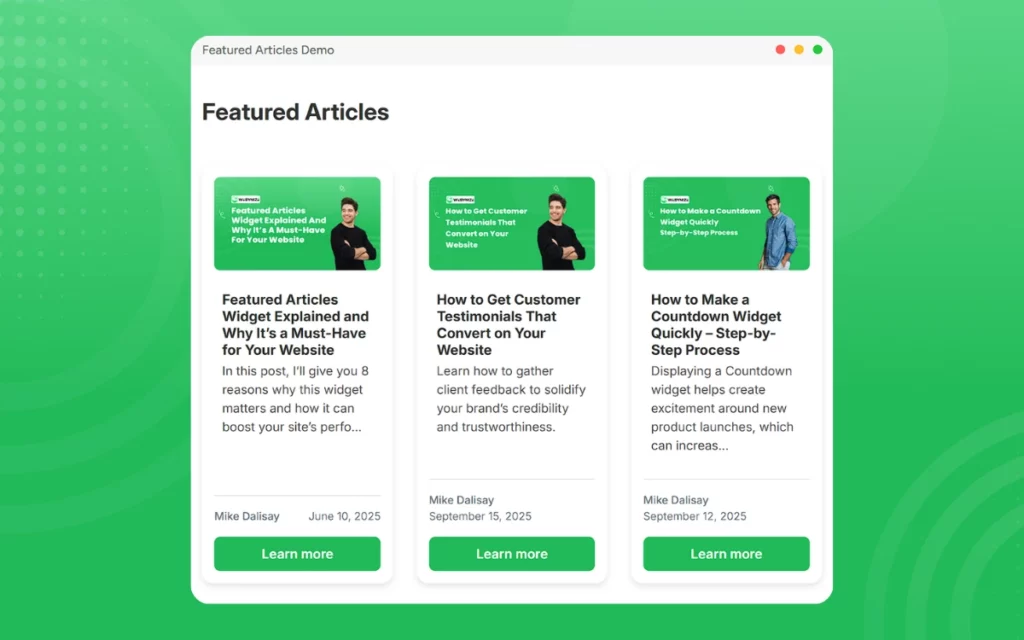
A featured post in WordPress simply means an article you have highlighted on your homepage, in the sidebar, or in an eye-catching grid with the intention of grabbing visitors’ attention quickly when they open your website. Check out our live demo of featured articles on a website example.
The main purpose of a featured post is to display your best posts and guide traffic to your other content.
Other reasons why featured posts matter include:
- Boosts User Experience: Featured posts guide visitors to your most important content, so that they don’t waste time sifting through older, irrelevant articles.
- Increases User Engagement: Placing your best content front and center encourages users to click and interact with it, increasing their time on your site.
- Boosts Product Conversions: You can use the featured space to promote new products or run targeted marketing campaigns, helping drive conversions on your website.
Best Practices for Managing Featured Posts
An effective featured posts section should be visually appealing and up to date to provide repeat visitors with a fresh stream of content to interact with.
Here are other factors to consider:
- Choose Your Best Content: Feature high-quality content that’s either trendy or resonates with your audience to increase interactions.
- Refresh the Posts: Update the featured posts regularly, such as weekly or fortnightly, to keep your content fresh and engaging.
- Use Dynamic Visuals: Add high-quality media, such as images or videos, to your featured posts to quickly draw visitors’ attention and revamp your website’s visual appeal for a strong first impression.
- Placement: Position the featured posts in prominent areas so that they are easily visible and accessible. However, ensure the posts do not clutter your web pages or obscure the main content, such as your products or services.
- Add Only a Few Posts: Limit the number of featured posts, so you don’t overwhelm readers or cause them to disengage due to decision fatigue.
- Provide Additional Context: Consider adding a tooltips widget to your website to provide context about the articles, such as their themes or sub-categories, when readers hover over the featured posts.
Where to Place Featured Content for Maximum Visibility?
Adding featured posts on a website is only effective if visitors can find and engage with the content.
Below are the most effective places to showcase your featured posts for maximum visibility:
- Homepage Section: Placing the featured content above the fold ensures visitors see it without scrolling, increasing their likelihood of engaging with the posts.
- Footer Content Area: Add secondary featured posts, such as related articles, to the footer section to turn your users’ exit point into an opportunity for further engagement.
- Sidebar: Position the featured posts on sidebars to strategically spotlight your best articles without obscuring the main content or disrupting your visitors’ browsing experience.
- Within Blog Posts: You can feature related content in other blog posts to let users move from one article to the next seamlessly, increasing their dwell time on your site.
How to Create a Featured Post in WordPress Without a Plugin Using a List Widget?
A list widget offers a convenient way to create a featured post section on a WP site without the hassle of using block editors. Webynize lets you add the featured articles widget to blend with your WordPress theme without writing any code, making it convenient for users without advanced web design skills.
In the first section of this guide, we outline how to generate an embed code using Webynize, while the second one explains how to add it to your WordPress site.
Create a Featured Post Widget on Webynize
Here’s how:
- Sign up on Webynize to enjoy a 7-day free trial. You can then upgrade to a monthly plan to continue accessing the premium widget.

- Select the + Create Widget button to go to the widget library.
- Choose the Featured Article widget from the dropdown menu.
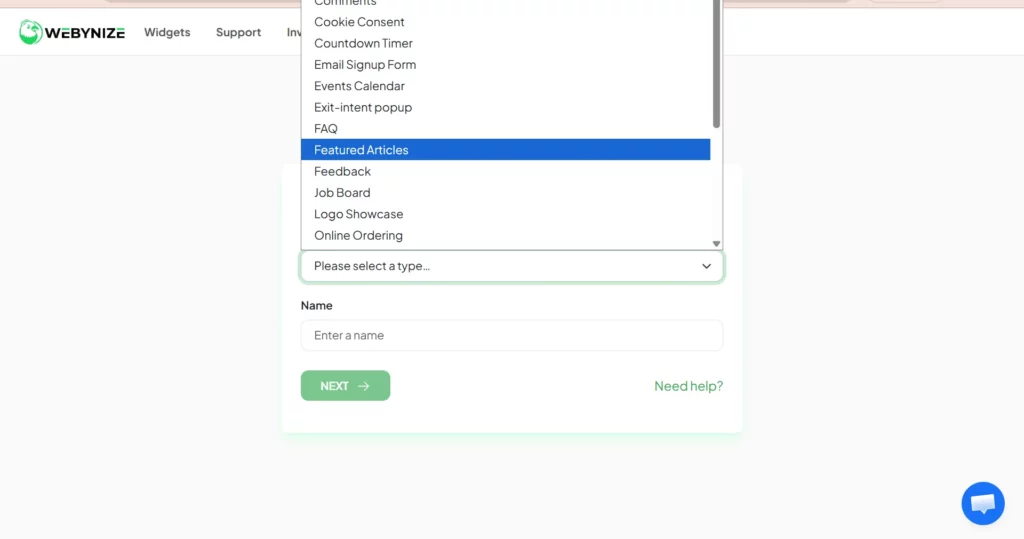
- Provide a custom name for your widget and click NEXT to launch the editor panel.
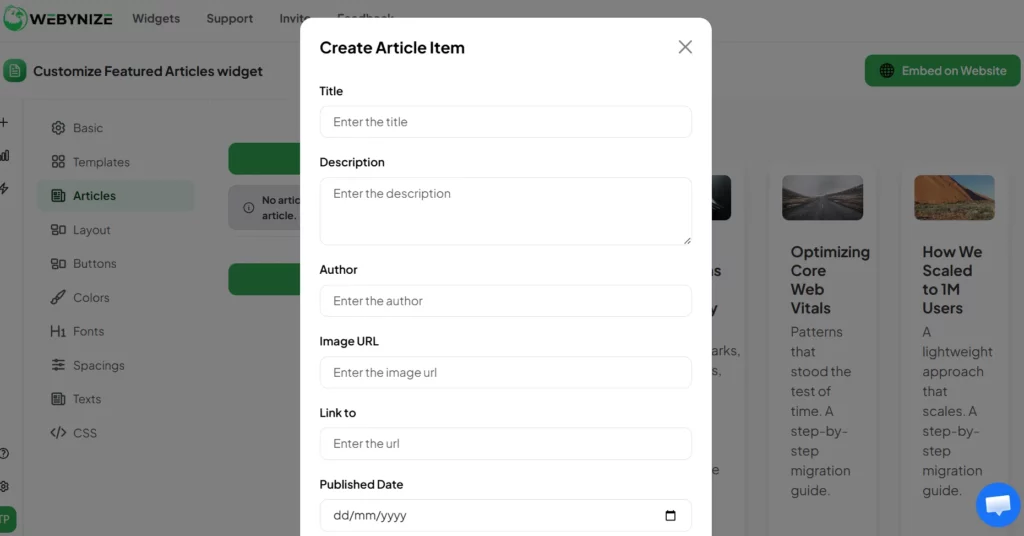
- Navigate to the Articles tab and click Create Articles to add the content you want to display.

- Input the article title, description, author, and link to the post, and save the changes. Repeat this process for all the articles you want to feature on your website.
- Use the Layout, Buttons, Colors, and Fonts tabs to customize the list widget to your preferences or to complement your WordPress theme, then save the changes.
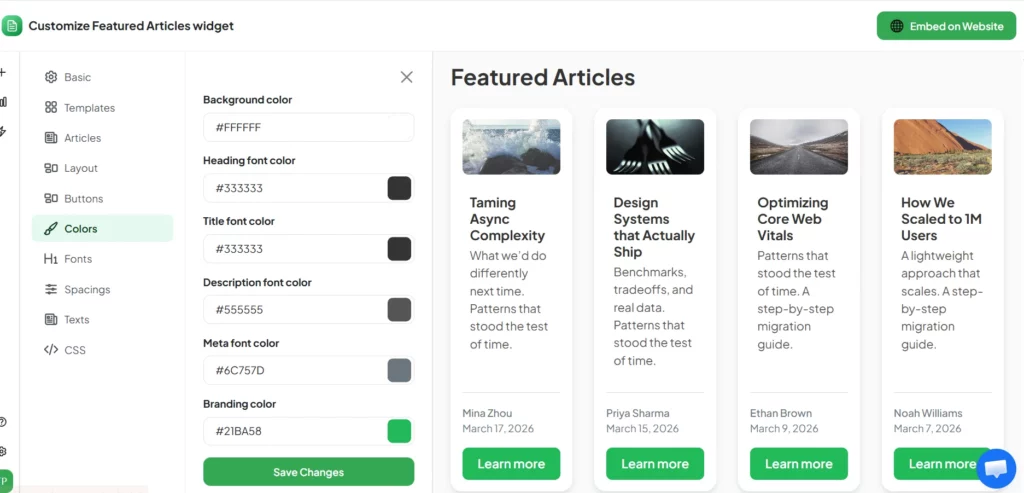
- Click the Embed on Website button and select WordPress as your website builder.
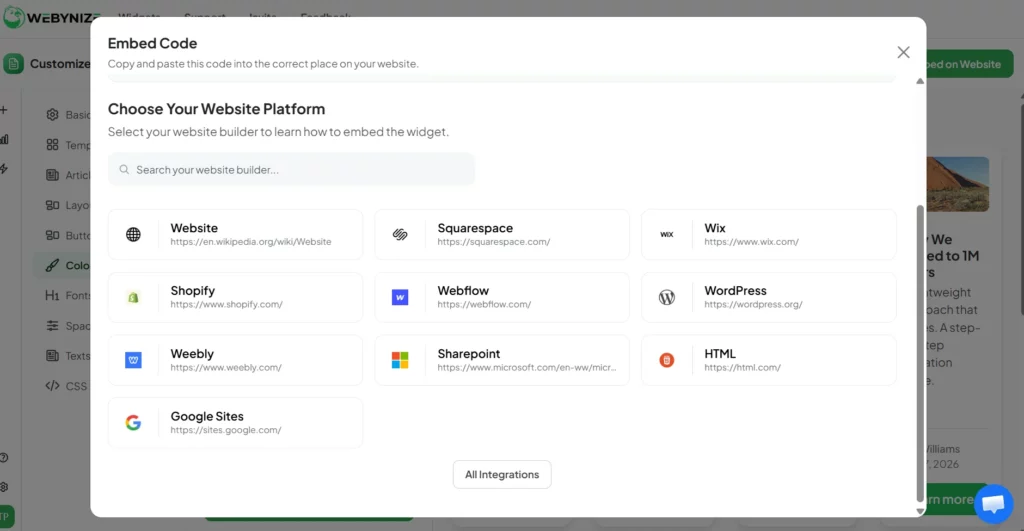
- Copy the generated JavaScript code that appears on the pop-up.
Adding the Widget to Your WordPress Website
Next, follow these steps to add the featured post widget to your WordPress site:
- Log in to your WordPress admin dashboard and open the web pages where you want to display the featured posts.

- Create a new code block, click the + icon, and select custom HTML.

- Paste the code and click the preview tab to see how the widget appears on your site.
- Click publish to save all changes and launch the widget.
Create a Featured Articles widget and highlight the best posts to keep visitors on your site longer.
How to add Featured Content with the Block Editor
The list widget offers the most convenient way to showcase featured posts on a WP site. However, if you’re still curious about how to add featured content using the block editor, we’ve got you.
Follow these steps:
- Log in to your WordPress admin dashboard.
- Create a new page or navigate to an existing page where you want to add your featured posts.
- Click the + Add Block button to create a new WordPress block on the web page.
- Add a Column or Group Block to ensure your featured section has a structured layout.
- Add an Image Block to ensure your featured articles have a captivating thumbnail image.
- Include a Heading Block below each image and type your article title.
- Hyperlink the title or image using the link option in the toolbar.
- Add a Paragraph Block under each title to provide a summary of your article.
- Customize the featured content by changing the spacing, font, and background color using the block sidebar settings.
- Preview the page, then click Publish to launch your featured posts.
Common Mistakes to Avoid When You Add Featured Articles
Displaying featured articles on your WP site helps boost visitor engagement and encourages them to dwell on your website longer. However, poor implementation can equally frustrate them, causing them to disengage and bounce off.
Here are common pitfalls to watch out for when setting up the featured articles:
- Overcrowding: Featuring too many articles can overwhelm users, leading them to ignore all posts due to decision fatigue. Identify three to five highly relevant articles to grab visitor attention quickly, while keeping the section organized.
- Poor Placement: Positioning the featured posts in cluttered sections reduces their visibility to website visitors, hurting engagement. Place the posts in prime real estate sections of your WordPress site, such as the header, footer, and sidebar.
- Irrelevant Content: Avoid featuring articles that don’t align with your brand or the specific pages where they are displayed. Instead, ensure the featured posts match visitors’ information needs to maximize engagement.
- Overlooking Visual Appeal: Using text-heavy content or poorly formatted featured posts can turn off visitors at first glance. Use high-quality images, a consistent font, and maintain information hierarchy to make the content easily scannable.
- Failing to Proofread: Featuring articles with grammatical errors can tarnish your brand’s image and perceived professionalism. Re-read your featured articles and ensure the final copy is coherent and aligns with your brand voice.
- Not Sharing New Posts: Failing to update your featured posts for months can discourage visitors from engaging with your content, potentially hurting your site’s engagement metrics. While there are no set rules, we recommend publishing a new post every other week to keep your content fresh for your readers.

Frequently Asked Questions (FAQs)
Here are the most commonly asked questions about displaying featured posts on WordPress without a plugin:
What is the Easiest Way to Create a Featured Section Without a Plugin?
The easiest way to create a featured section on WordPress without a plugin is to use a list widget.
The widget generates the code that you can add to your WordPress site, making it convenient for users without advanced technical skills.
How to Update or Remove a Featured Article Later?
Here’s a simple guide for updating or removing a featured article later when using a list widget:
- Log in to your Webynize dashboard.
- Select to edit your featured post widget.
- Navigate to the Basic tab and select to manage articles.
- Select to modify or remove the article as needed, then save the changes.
Does a Featured Section Improve SEO and Engagement?
Yes. A featured articles widget is a must-have for your website because it impacts SEO and engagement in the following ways.
- First, showcasing your best posts captures visitors’ attention and encourages them to engage with the content, increasing your website’s dwell time. This signals search engines that your website contains valuable information, helping it rank higher on SERPs.
- Second, including high-volume keywords in the article descriptions helps your website appear in relevant searches, increasing visibility to your target audience.
Conclusion
Adding a featured post in WordPress without a plugin eliminates the hassle of finding the right tool, especially with the numerous plugins available online. Additionally, you don’t have to deal with load speed problems if the plugin is not properly optimized.
Instead, you can use a list widget and enjoy the convenience of creating and customizing it without writing any code.
Developed by veteran developers behind SociableKIT, Webynize leverages its over a decade of experience in SaaS and web development to provide a no-code featured post widget that doesn’t require technical expertise to set up. Our widget is mobile-friendly and automatically adjusts to different screen sizes, providing a consistent UX across devices.
Create a Featured Articles widget and showcase engaging articles on your WordPress site to boost visitor engagement.
Leave a Reply