Welcome to our tutorial on how to add a Table of Contents widget to your web project.
Easily enhance your content navigation with our customizable Table of Contents widget. Automatically pull headings from your content section (h2 tags).
Whether you want to improve user experience or create a more interactive website, a Table of Contents can be valuable. This article will walk you through integrating our Table of Contents widget into your web project.
Add Table Of Contents Widget to Website – Step by Step
To add Table of Contents widget, follow the steps below:
- Create a Table of Contents widget in Webynize.
- Click Next button.
- Customize the design and data of your Table of Contents widget.
- Click the “Embed now” button.
- On the popup, copy the code.
- Paste the code on your web project.
Navigate content with clarity.
Turn long pages into effortless reading experiences.
Your visitors will never get lost again. They will glide through your content with precision, confidence, and focus.
Auto Generated Structure.
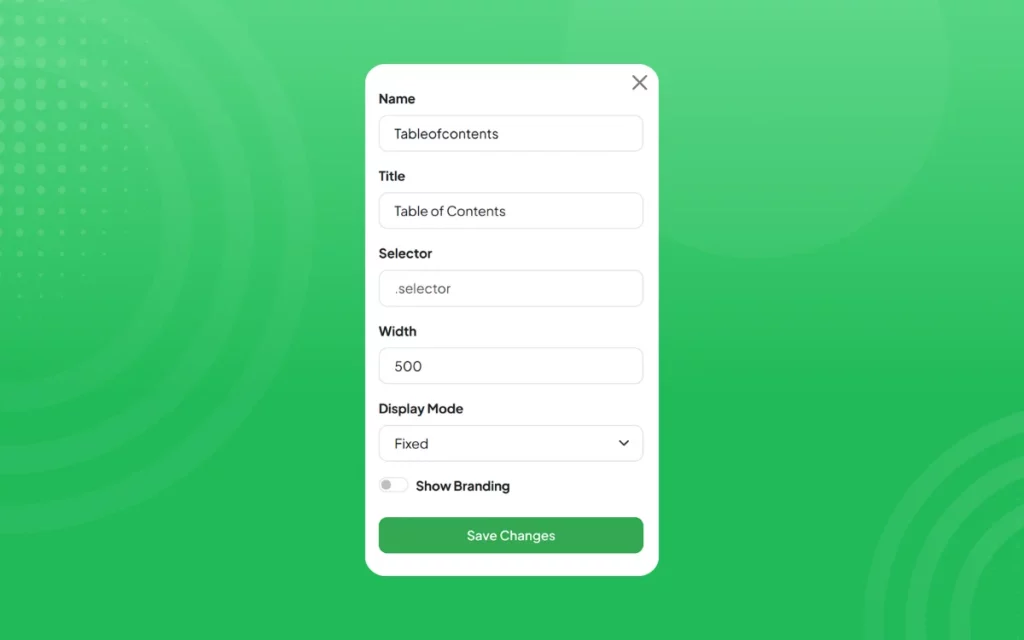
Let your widget do the work. It automatically pulls headings from your page and builds a clean, interactive list for instant navigation. No manual setup. No confusion.
Fully Customizable Design
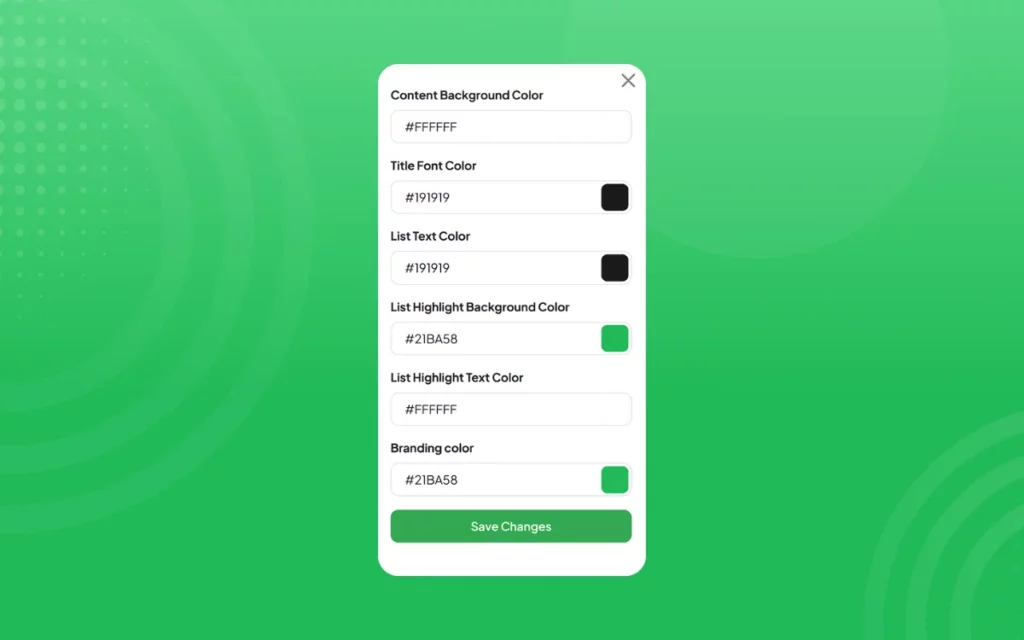
Control every detail from title and list colors to background and highlights. Create a Table of Contents that fits your brand’s visual identity seamlessly.
Flexible Display Modes.
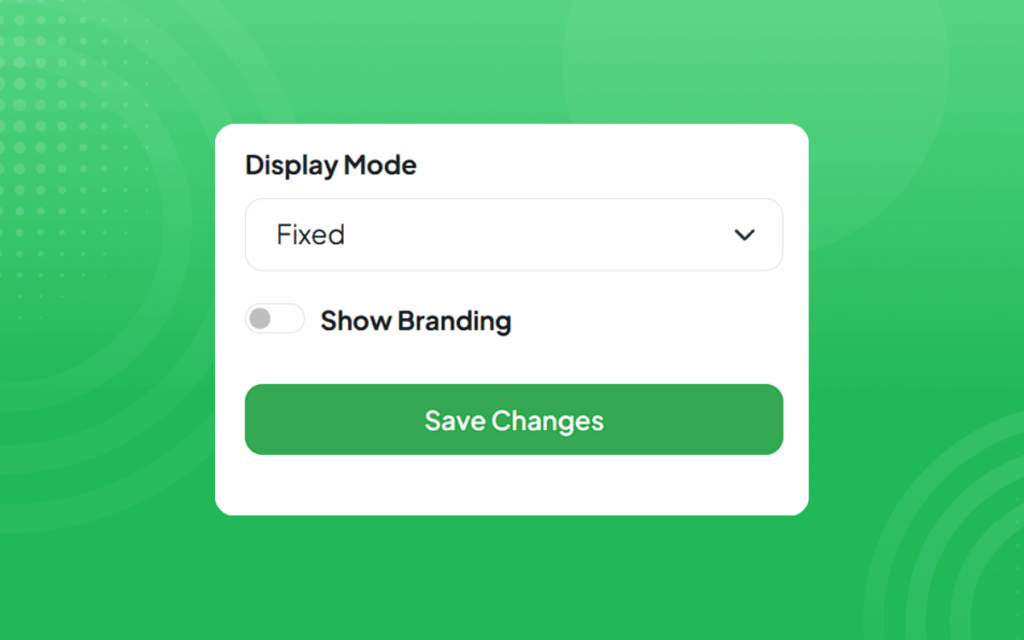
Whether you prefer a fixed sidebar or a smooth inline layout, choose how your visitors explore.
Smart Typography.
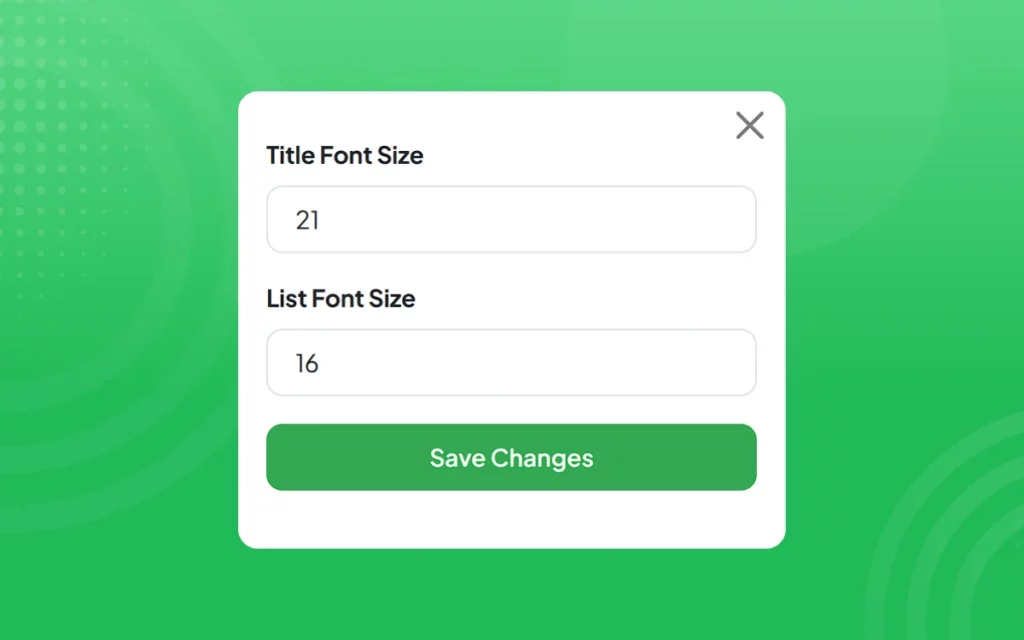
Set title and list font sizes that enhance readability. Every element feels balanced, elegant, and easy on the eyes.
Perfect Spacing for Every Layout.
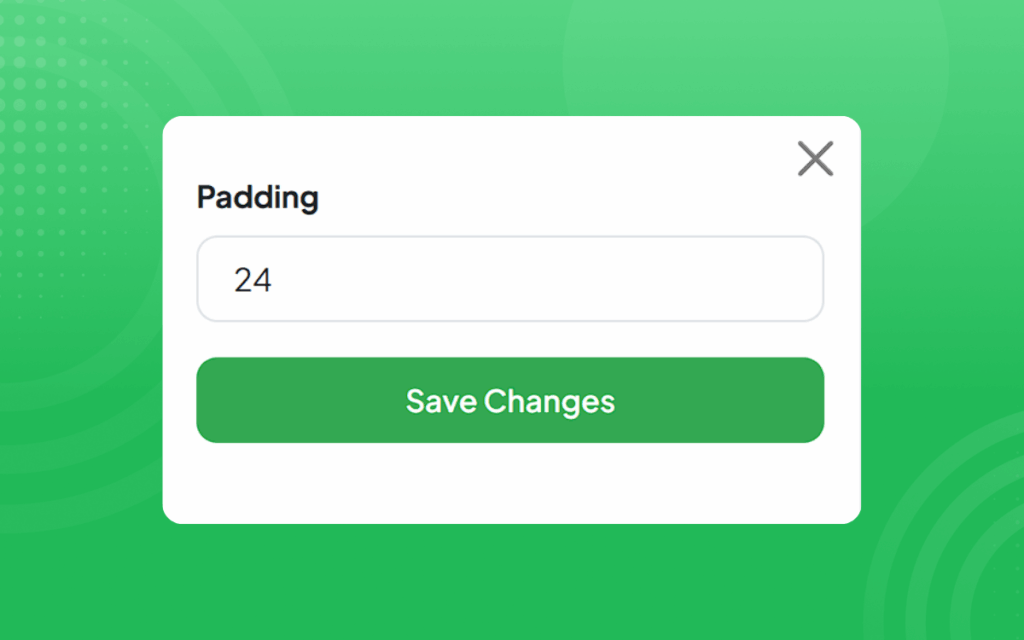
Your content deserves room to breathe. With adjustable padding, you can fine-tune the space around your Table of Contents for a clean, balanced look that feels natural on any screen.
Advanced Custom CSS.
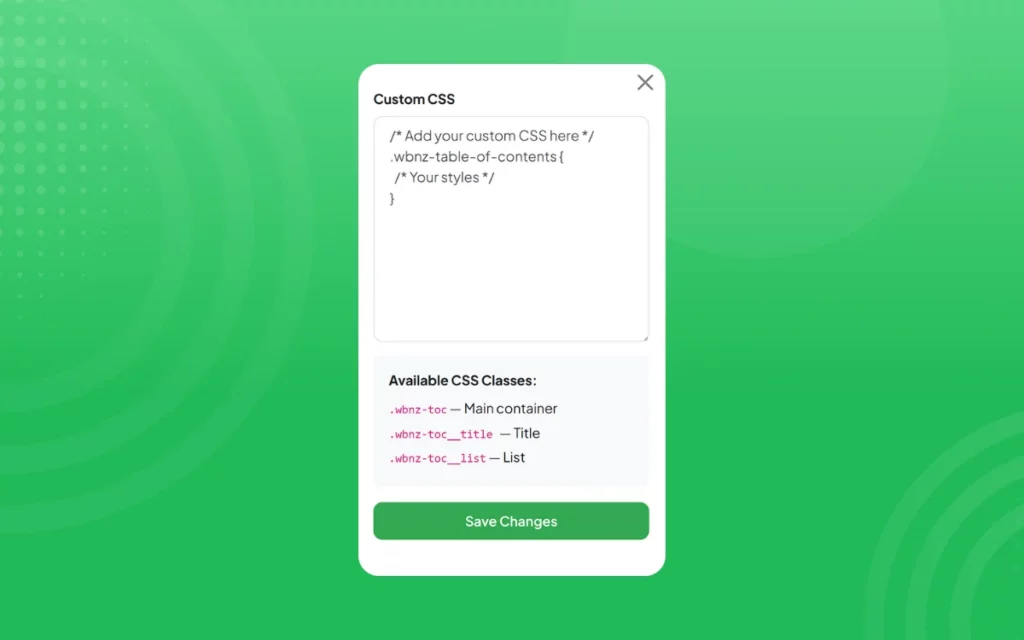
For creators who love precision. Apply your own CSS using pre built classes. Design your widget exactly the way you envision it down to the last pixel.
Simple Setup.

Bring structure, style, and simplicity to every page. Your readers deserve clarity, and your website deserves to feel premium.
[LIVE-DEMO]
[TESTIMONIALS]
Need Support?
This tutorial has helped show you how to add a Table of Contents widget to your web project for FREE!
If you have any questions or need further assistance, please get in touch with our support team using the chat box on the lower right corner of this page.
Conclusion
Adding a Table of Contents widget can be a simple and effective way to gather valuable insights from your customers and improve the overall user experience of your web project.
We wish you the best of luck with your new Table of Contents widget!
Leave a Reply